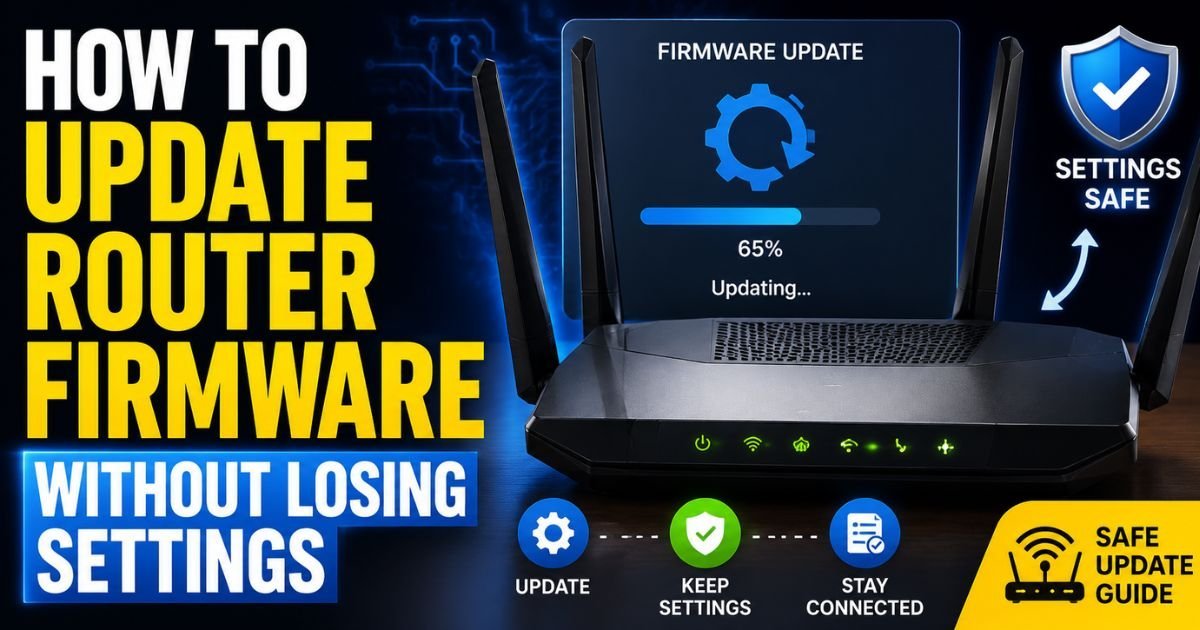
How to Update Router Firmware Without Losing Settings.I still get a minor spike of adrenaline every time I hit the “Update” button on a core network device. Even after a decade of working as a field IT specialist and configuring SOHO networks across the US, that split-second before the progress bar starts moving makes me hold my breath.
- 1. The Golden Rule: Create a Router Configuration Backup First
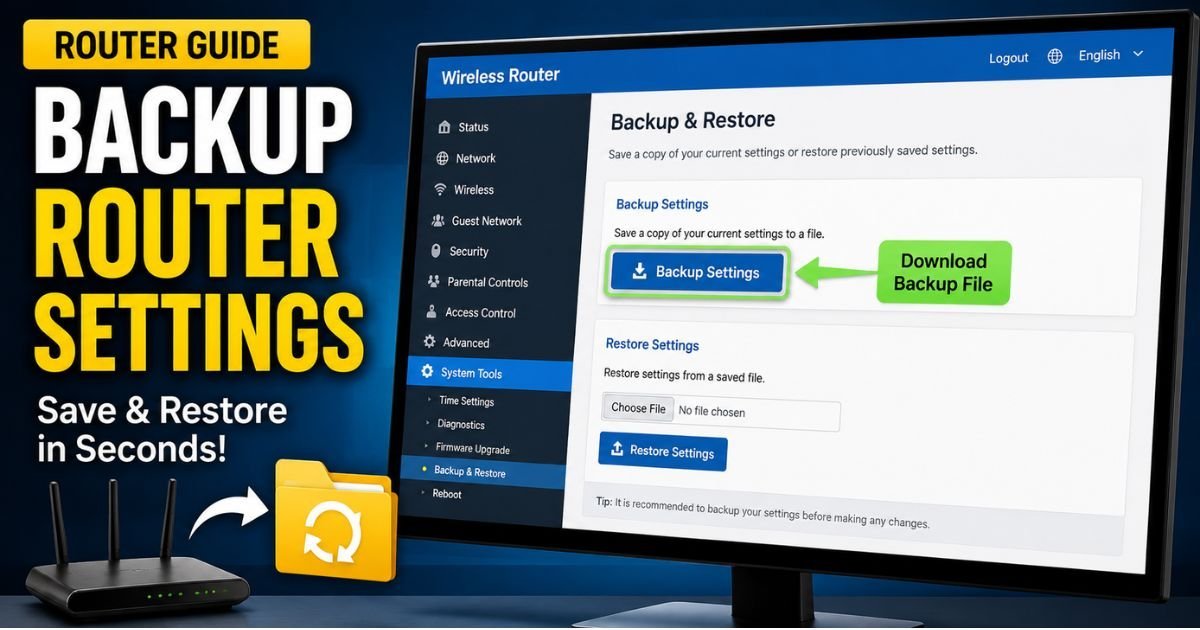
- 2. Step-by-Step: How to Backup Router Settings
- 3. Method 1: Performing an Automated In-App or Cloud Update Safely
- 4. Best Practices for App-Based Updates
- 5. Method 2: Performing a Manual Firmware Update via Web GUI
- 6. Why Manual is Safer (and How to Do It)
- 7. Steps for Manual Installation:
- 8. Common Pitfalls to Avoid: Update via Wi-Fi vs. Wired Ethernet
- 9. The Wired Ethernet Mandate
- 10. Open-Source Firmware Warning
- 11. Troubleshooting: What to Do If Your Router Resets or Bricks
- 12. How to Restore Router Settings from Backup File
- 13. Frequently Asked Questions
- 14. Do I lose my settings when I update my router?
- 15. Is it safe to update router firmware over Wi-Fi?
- 16. What should I do if my router gets stuck in a boot loop after a firmware update?
- 17. Can I restore a backup configuration file from an older Netgear router to a new Netgear Nighthawk router?
Why? Because I know what is at stake. In a typical American home today, you do not just have a couple of laptops online. You have Comcast Xfinity or Spectrum service coming into a bridged ISP gateway, feeding a high-end personal router that manages 40+ smart home devices—everything from Ring doorbells and smart plugs to Apple TVs and smart thermostats.


If that router firmware update goes sideways and wipes your system configuration, you are looking at hours of climbing ladders to manually reset smart plugs and outdoor cameras.
Many homeowners put off critical security updates for months out of one simple fear: do I lose my settings when I update my router?
The short answer is: No, not if you do it right. Modern routers from brands like Netgear, ASUS, and TP-Link are engineered to write new firmware to the system partition while leaving the configuration partition untouched. However, bugs, power fluctuations, and bad update paths can still trigger a factory default wipe.
Let me walk you through exactly how to keep your settings, SSID broadcast, port forwarding rules, and DHCP reservation list completely safe during a firmware upgrade.
The Golden Rule: Create a Router Configuration Backup First
Before you even think about looking for firmware files, you must build yourself a digital life jacket. If a firmware update fails, or if the new system code forces a factory default to prevent boot loops (which occasionally happens with major architectural leaps in code), having a configuration backup file is the difference between a 30-second fix and a whole weekend of headaches.
This backup file (usually formatted as a .cfg or .bin file) saves your exact custom settings configuration, including your security protocols (like WPA3 security protocol configurations), custom DNS servers, and static IPs.
🔗 Related Android Fixes
- Netgear Router Keeps Losing Connection — 5 Real Fixes
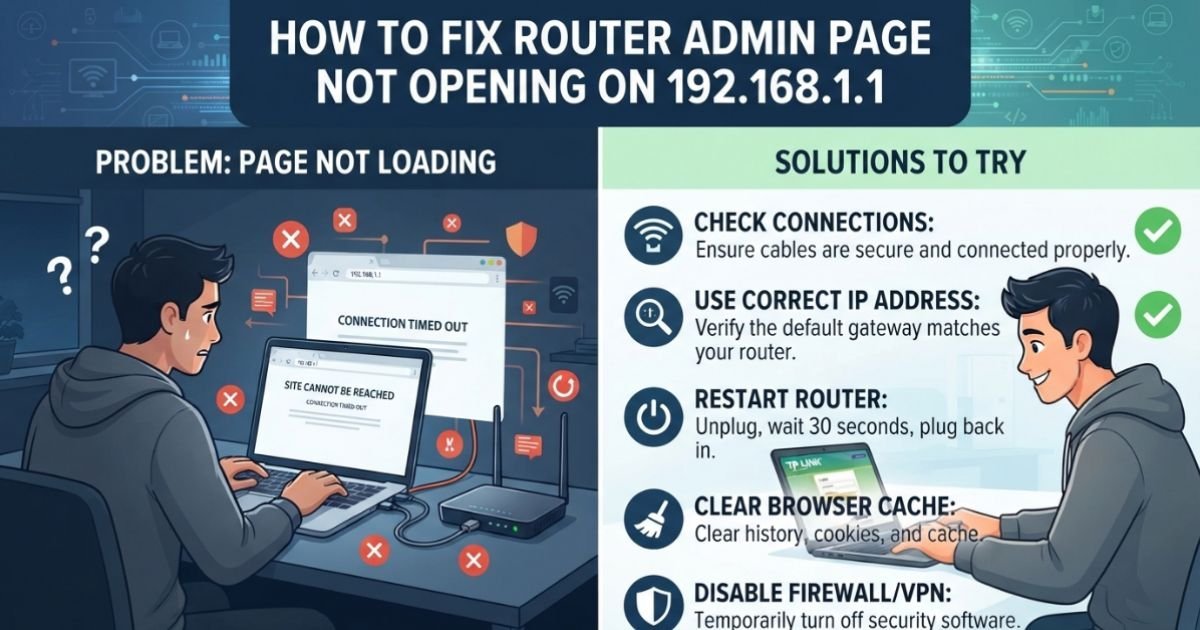
- How to Fix Router Admin Page Not Opening on 192.168.1.1
- Linksys Router Not Working After Power Outage — Easy Fix
- How to Fix Asus Router WiFi Dropping Frequently
- How to Fix TP-Link Router Not Connecting to Internet
- How to Change WiFi Channel on Router to Fix Slow Speed
Step-by-Step: How to Backup Router Settings
Here is how to grab that backup file on the most popular router brands selling in the US market:
For Netgear Nighthawk Routers
- Open a web browser on a computer connected to your network and type
192.168.1.1orrouterlogin.netinto the address bar to open the admin portal. - Log in with your admin credentials (not your Wi-Fi password).
- Navigate to the Advanced tab > Administration > Backup Settings.
- Click the Backup button. Your browser will download a file named something like
NETGEAR_WNDR3700.cfg. Save this to a secure folder on your computer.
For ASUS Routers (AsusWRT)
- Navigate to
192.168.50.1orrouter.asus.comto access your AsusWRT dashboard. - On the left-side menu, scroll down to the Advanced Settings section and click on Administration.
- Select the Restore/Save/Upload Setting tab at the top.
- Click the Save setting button next to “Save setting”. This saves your configuration file locally.
For TP-Link Routers
- Log in via
192.168.0.1ortplinkwifi.net. - Go to Advanced > System Tools > Backup & Restore.
- Under the Backup section, click Backup to export your current settings configuration to your local storage.
Expert Insight: Never try to restore a backup file created on one router model onto a different router model—or even a different hardware revision of the same model. Doing so can seriously corrupt your router’s NVRAM and brick the device instantly.
Method 1: Performing an Automated In-App or Cloud Update Safely
If you prefer simplicity, using your manufacturer’s mobile app (like Netgear Nighthawk or TP-Link Tether) is incredibly convenient. These apps tap into cloud servers to query, download, and initiate firmware updates.
However, many users wonder: is it safe to update router firmware over wifi?
Here is the technical reality. It is perfectly safe for your app to trigger the update. When you press “Update” in the TP-Link Tether app, the app is not sending the firmware file from your phone to the router over Wi-Fi. Instead, it is sending a simple API command telling the router to directly download the firmware from the manufacturer’s secure cloud servers using its WAN interface (your internet wire).
Best Practices for App-Based Updates
- Do not use your phone for other heavy tasks while the update is initiating. Keep the app open until the router begins its reboot cycle.
- Never interrupt the power source. Ensure your router is plugged into a reliable outlet or, ideally, an Uninterruptible Power Supply (UPS). A power outage midway through a flash write will brick the hardware.
- Wait at least 10 minutes. Even if your phone app says “Connection Lost” (which happens because the router’s local Wi-Fi shuts down to reboot), do not pull the plug. Let the physical LED indicators on the router return to their normal solid white or green state before attempting to connect.
Method 2: Performing a Manual Firmware Update via Web GUI
For those who want absolute control—or if your automated updater keeps throwing an error—the manual Web GUI path is the gold standard. This is the absolute best way to execute an asus router update firmware keep settings routine or complete a tp link router firmware update reset settings bypass.
Why Manual is Safer (and How to Do It)
Sometimes, the “Check for Updates” button built into your router’s software lies to you. Manufacturers roll out updates in stages across different regions of the US. A critical security patch might be live on the support website but not yet pushed to the automated CDN update servers. By manually downloading the firmware, you get immediate access to security improvements without losing your custom port forwarding rules or DHCP reservations.
+--------------------------------------------------------------+
|                     MANUAL UPDATE FLOW                       |
|                                                              |
|  1. Download Firmware  -->  2. Connect PC via Ethernet       |
|            |                                |                |
|            v                                v                |
|  Verify ZIP & Extract CFG      Log into Admin Portal (.1)    |
|            |                                |                |
|            +--------------------------------+                |
|                            |                                 |
|                            v                                 |
|                 3. Upload File & Flash                       |
+--------------------------------------------------------------+
Steps for Manual Installation:
- Locate the official download page: Go directly to the official support site (e.g., Netgear Support, ASUS Download Center, or TP-Link Download Center). Never download router firmware from third-party blogs or forums.
- Identify your exact hardware version: Look at the barcode sticker on the bottom of your physical router. It might say something like “Netgear Nighthawk RAX80 v2”. A “v1” firmware will fail or damage a “v2” unit.
- Download and Extract: Download the firmware ZIP file. Extract it on your computer. You are looking for a file ending in
.img,.trx, or.bin. - Log in and Upload: Open your router’s admin portal, navigate to the firmware update section (often under Administration or System Tools), click Choose File, select the extracted firmware file, and click Upload/Update.
Common Pitfalls to Avoid: Update via Wi-Fi vs. Wired Ethernet
If you are wondering how to update firmware on netgear router without losing settings smoothly, the physical medium you use to connect during the update matters immensely.
The Wired Ethernet Mandate
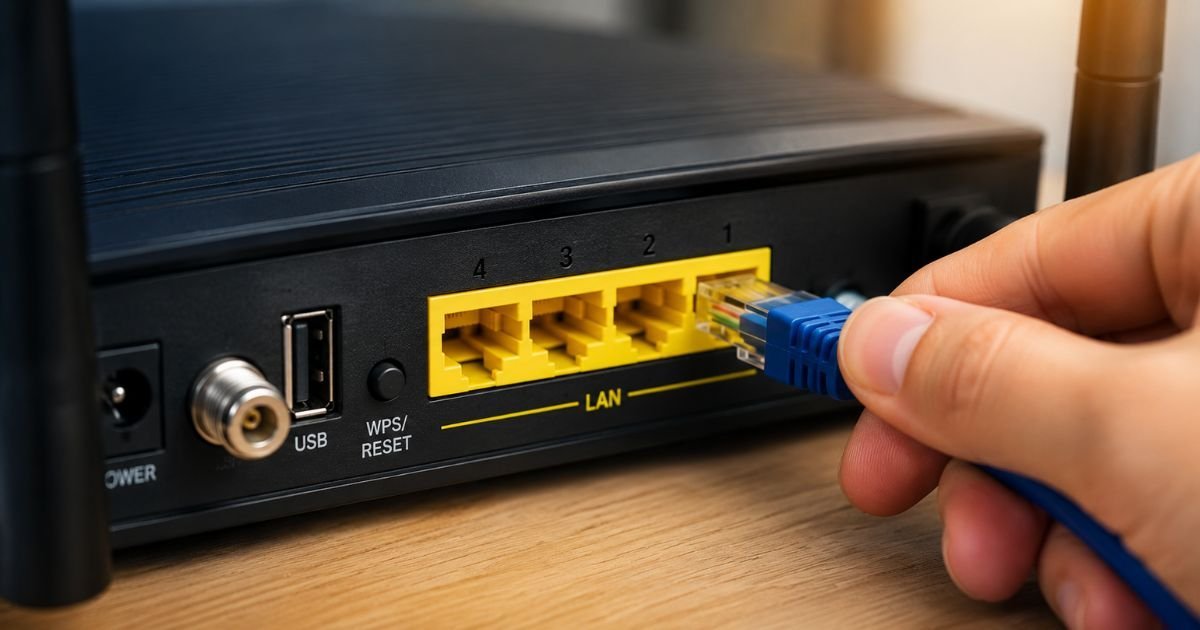
Whenever possible, connect your computer directly to one of your router’s yellow or black LAN ports using an RJ45 Ethernet cable before starting a manual firmware upload.
Why? If you upload a 100MB firmware file over a 5GHz Wi-Fi connection and a neighbor’s heavy microwave usage or radar interference causes a sudden packet drop, the file transfer can corrupt. While modern bootloaders check file integrity before flashing, why take the risk of a half-flashed system? A physical Ethernet connection is immune to local RF interference.
Open-Source Firmware Warning
If you are planning to flash customized open-source firmware like DD-WRT, Tomato, or OpenWrt onto your router, prepare yourself: you will absolutely lose all your settings. Transitioning from a manufacturer’s stock OS to open-source code requires a mandatory partition format. Do not try to restore your factory .cfg file on DD-WRT; it will cause a hard brick.
Troubleshooting: What to Do If Your Router Resets or Bricks
Sometimes, despite following all instructions, a major firmware leap (such as upgrading an older ASUS router from an older code base to the latest AsusWRT-Merlin or stock WPA3-supported code) forces a factory reset to maintain system stability.
If you find yourself staring at a flashing amber light or a default “NETGEAR-Setup” open Wi-Fi network name, do not panic.
How to Restore Router Settings from Backup File
If your settings were wiped post-update, configuring everything from scratch is unnecessary.
- Connect your computer to the router (either via the default Wi-Fi password printed on the router’s bottom label, or via an Ethernet cable).
- Type the default gateway IP (usually
192.168.1.1or192.168.0.1) into your web browser. - Skip the initial setup wizard if the screen offers a manual setup option.
- Go to the Backup & Restore menu (or your brand’s equivalent).
- Under the Restore or Upload Configuration section, click Browse, select the
.cfgor.binbackup file you saved earlier, and click Upload. - The router will process the file, reboot, and boot up with all your custom SSIDs, port forwarding rules, and device parameters perfectly intact.
Frequently Asked Questions
Do I lose my settings when I update my router?
In 95% of cases, no. Modern router firmware updates are designed to overwrite the operating system partition without altering your separate configuration directory. However, major system version upgrades or bugs may occasionally trigger a factory default, making a pre-update backup file essential.
Is it safe to update router firmware over Wi-Fi?
It is safe if you are using the official mobile app to trigger an automated cloud download. However, if you are performing a manual update by downloading a firmware file to your laptop and uploading it through a web browser, we strongly recommend using a wired Ethernet connection to prevent packet loss.
What should I do if my router gets stuck in a boot loop after a firmware update?
If your router’s power light keeps blinking and it never fully boots, it may be bricked. You can often recover it by using a TFTP client to push the firmware file over a direct Ethernet cable connection while starting the router in TFTP recovery mode, or by using the manufacturer’s recovery utility (like the ASUS Firmware Restoration Tool).
Can I restore a backup configuration file from an older Netgear router to a new Netgear Nighthawk router?
No. Even within the same brand, configuration backup files are specific to exact models and hardware versions. Restoring a configuration file from a different model can cause software mismatches, system instability, or prevent the new router from booting up altogether. Always configure a new router model manually from scratch.